
File Explorer's Quick Access view is great for navigating the file system. If there are particular files or folders that you frequent, you can pin them to Quick Access and have them be just a click away.
Pinning an item to Quick Access is very easy. Within File Explorer, navigate to the file or folder that you want to pin, right-click it, and select "Pin to Quick Access" from the Context menu. The item that you pinned doesn't move, but you'll now see it also in the Quick Access section of File Explorer. (See Figure 1.)
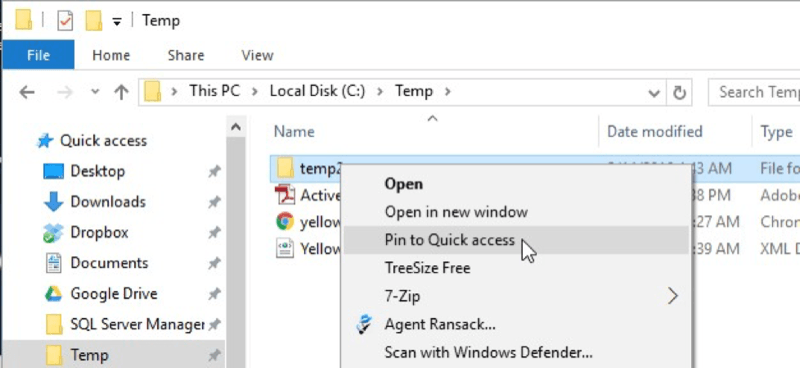
Figure 1. Pinning a folder to Quick Access.
And you don't have to settle for the order in which File Explorer keeps your pinned items. You can drag/drop items within the Quick Access section to place them in the order you like by clicking on an item and, while holding down the mouse button, dragging the item to another location in the Quick Access section. When you release the mouse button, the item is repositioned. (See Figure 2.)
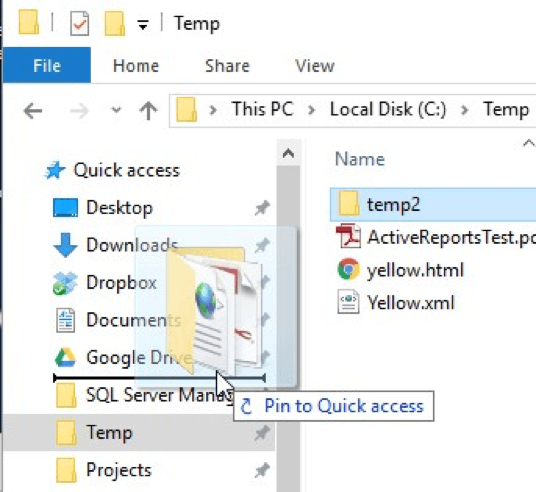
Figure 2. Drag/drop a folder in Quick Access to reorder it.
Finally, if you later wish to remove an item from the Quick Access section, you right-click the item and select "Unpin from Quick Access" from the Context menu. The item still retains its availability in its original location on disk, but its Quick Access entry is removed. (See Figure 3.)

Figure 3. Unpinning an item from Quick Access.
 This tip (13452) applies to Windows 10.
If you ever want to copy user accounts, documents, pictures, etc., from one computer to another, you'll find that Windows ...
Discover MoreIf you schedule Robocopy operations, you may want to maintain log files of what happened. In this case, getting familiar ...
Discover MoreWindows is configured, by default, to hide file extensions. This could be confusing or outright dangerous. For example, ...
Discover MoreThere are currently no comments for this tip. (Be the first to leave your comment—just use the simple form above!)
Copyright © 2026 Sharon Parq Associates, Inc.

Comments