
Changing Icons

Written by Allen Wyatt (last updated July 8, 2019)

2

When you add programs, create shortcuts, or do any number of other tasks in Windows, the system assigns an icon to whatever it is that is being added or created. Most people use the default icons selected by Windows, but you might want to be different and specify your own icons. Here's an easy way to do it:
  1. Right-click the item whose icon you want to change. (For this example, I'll assume you are right-clicking on a shortcut icon.) Windows displays a Context menu.
  2. Click the Properties option. Windows displays a Properties dialog box for the item.
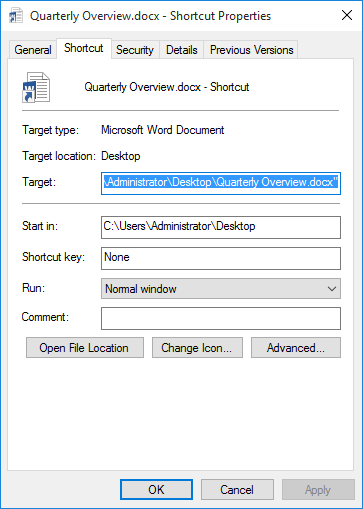
  3. Make sure the Shortcut tab is displayed. (Depending on the nature of the item you are working with, you may need to search around to find the correct tab in the dialog box.) (See Figure 1.)
  4. Figure 1. The Properties dialog box for a shortcut.
  5. Click Change Icon. Windows displays the Change Icon dialog box.
  6. Click Browse. Windows displays a familiar Open-style dialog box.
  7. Use the controls in the dialog box to locate and select the file that contains the icon images you want. (For the purposes of this example, locate and select the file c:\windows\system32\imageres.dll.)
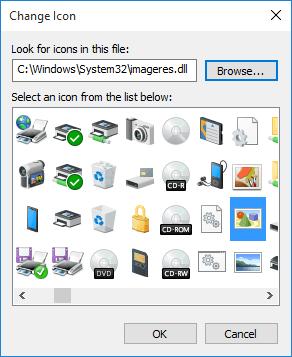
  8. Click Open. Windows displays the icons in the file in the Change Icon dialog box. (See Figure 2.)
  9. Figure 2. The Change Icon dialog box.

  10. Select the icon you want to use.
  11. Click OK. Windows updates the icon in the Properties dialog box.
  12. Click OK to close the Properties dialog box.

You can, if desired, attempt to use different files in step 6. Sometimes Microsoft or a software vendor will create a file that contains many images (as imageres.dll does) or the icon images may be part of some other file that contains only a few. Only some exploring on your part will get you to the images you want to use.

 This tip (3604) applies to Windows 7, 8, and 10.

Author Bio

Allen Wyatt

With more than 50 non-fiction books and numerous magazine articles to his credit, Allen Wyatt is an internationally recognized author. He is president of Sharon Parq Associates, a computer and publishing services company. ...

MORE FROM ALLEN

Vertical Lines in Word

Lines can help to organize the data on a page or make certain points clearer. Word provides several different ways you ...

Discover More

Word and Character Count Information

Using fields you can easily insert both the word and character counts for a document into the document itself. Here's how ...

Discover More

Limiting a Calculated Value to a Range

If you want to limit what is returned by a formula to something between lower and upper boundaries, the solution is to ...

Discover More
More WindowsTips

Starting Applications Automatically when Starting Windows

Understanding the Task Scheduler is a great asset when you want your computer to do things automatically. This tip shows ...

Discover More

Getting Started with the Xbox Game Bar

Xbox Game Bar is more than just for use in the Xbox ecosystem. What settings correlate to using Xbox Game Bar? Read on to ...

Discover More

Modifying the General Startup Process

Having problems getting Windows to start properly? You can try to track down what is causing the problem by using the ...

Discover More
Comments

If you would like to add an image to your comment (not an avatar, but an image to help in making the point of your comment), include the characters [{fig}] (all 7 characters, in the sequence shown) in your comment text. You’ll be prompted to upload your image when you submit the comment. Maximum image size is 6Mpixels. Images larger than 600px wide or 1000px tall will be reduced. Up to three images may be included in a comment. All images are subject to review. Commenting privileges may be curtailed if inappropriate images are posted.

What is five minus 3?

2019-07-08 17:13:03

MW

When you click to change the icon as described above, Win10 typically defaults to the list of icons contained within the file: Shell32.dll

However as Allen discusses there are many other icon options squirreled away in various systems files, like his selection imageres.dll. But searching for those icon 'depositories' is a bit time consuming.

Here are several system files that I refer to frequently when I need specific icons:
compstui.dll
outllibr.dll
mapi32.dll
ieframe.dll
netshell.dll
mmcndmgr.dll
pifmgr.dll

Here is a website suggesting more locations:
https://www.digitalcitizen.life/where-find-most-windows-10s-native-icons


2019-07-08 12:44:03

Allan

Unfortunately this procedure does not always work. I have never found out why ..


Newest Tips