
If you are using Windows 7, the normal way of powering down your system is to click the Start button and then use the Power button. (The Power button is visible at the bottom-right of the Start menu.) There are two parts to the Power button. The left (and largest) part shows the default action taken when you click the button. The right portion, which looks like a right-pointing arrow, allows you to pick any shutdown method you desire.
By default, the Power button normally shuts your system completely down. If you find yourself using one of the other shutdown options more often, you can modify the default action used for the Power button. Just follow these steps:
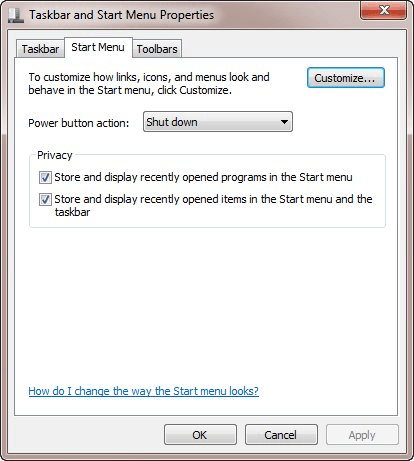
Figure 1. The Start Menu tab of the Taskbar and Start Menu Properties dialog box.
Performing these steps also adjusts the wording that appears on the Power button so that it is consistent with your desired default action.
If you are using Windows 8, the two-part power button is gone, so there is no "default action" that you can specify. Instead, there is only a single part to the power button (visible near the upper-right corner of the Start screen) and clicking it presents various shut-down options you can take. This is analogous to what you saw when you clicked the right-pointing arrow next to the power button in Windows 7.
If you are using Windows 10, there is only a single part to the power button (visible near the lower-left corner of the Start screen) and clicking it presents a context menu with various shut-down options you can take.
As with earlier versions of Windows, by default, the Power button normally shuts your system completely down. Follow these steps to modify the default action for the Power button if you are using Windows 10:
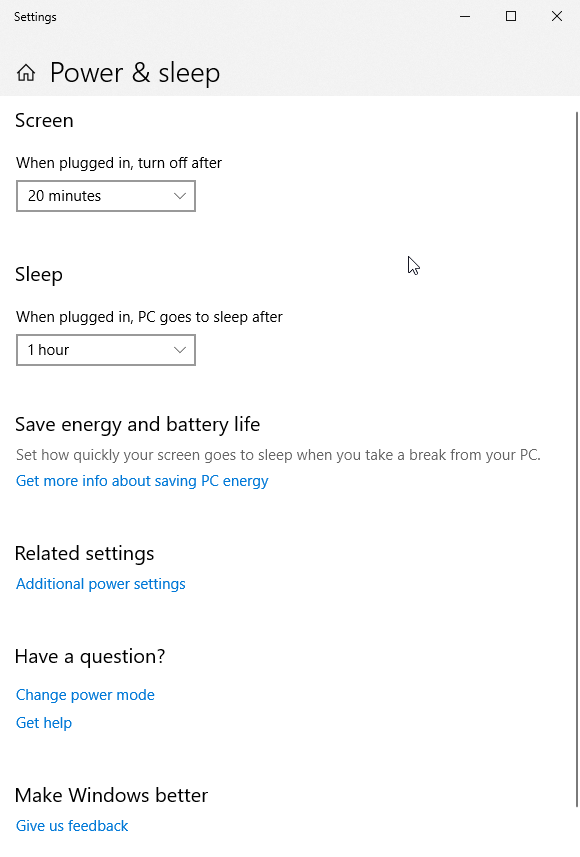
Figure 2. The Power & Sleep section of the Settings dialog box.
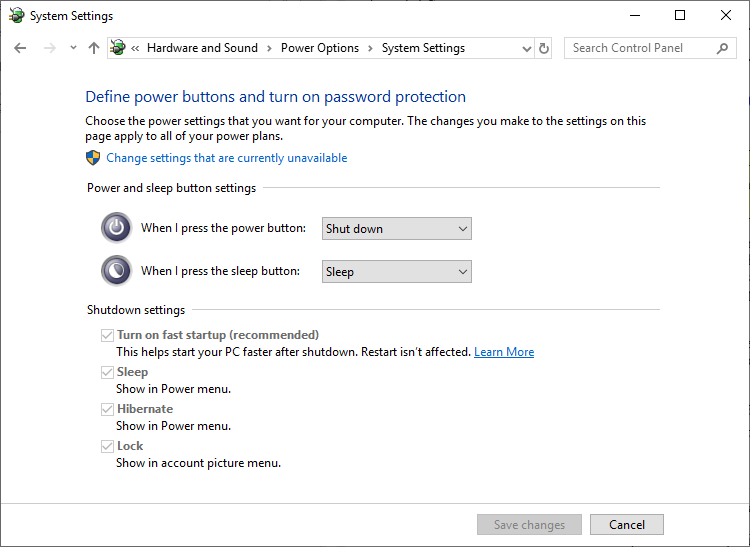
Figure 3. The System Settings dialog box.
Performing these steps also adjusts the wording that appears on the Power button so that it is consistent with your desired default action.


 This tip (12626) applies to Windows 7, 8, and 10.
With multiple devices used today, the way we scroll can change depending on the device. If you're used to reverse ...
Discover MoreWindows installs updates automatically by default. If you want to review what updates have been installed, seeing the ...
Discover MoreThe orientation of your screen is not limited to the default orientation when you connect it to your computer. You can ...
Discover MoreThere are currently no comments for this tip. (Be the first to leave your comment—just use the simple form above!)
Copyright © 2026 Sharon Parq Associates, Inc.

Comments