
The Registry is perhaps the most dynamic area of Windows. Because it contains all of the system settings and configuration information for your system, it makes sense that the Registry would be busy. In most cases, the Registry is updated automatically by Windows, in the course of using your system.
For instance, you may add a new hardware device that Windows automatically detects. In such a case, the drivers are loaded automatically, and settings are changed. The information about these drivers, the device, and any settings is stored automatically in the Registry.
Some Registry changes, however, require some interaction on your part. Typically, you change the Registry by using the various tools made available through the Control Panel. As you make changes to your system settings, the changes are saved in the Registry. Other changes are introduced by using system tools.
Windows also allows you to make changes directly to the Registry, manually. While this is not as easy as making changes using the Control Panel (or other tools), the effect is the same. This is because you are changing system settings, and those are used to control how Windows functions.
To change the Registry manually, you use the Registry Editor. This program is not available from any of the regular Windows menus, probably due to the potential adverse consequences of misuse. Instead, you need to start the program in this manner:
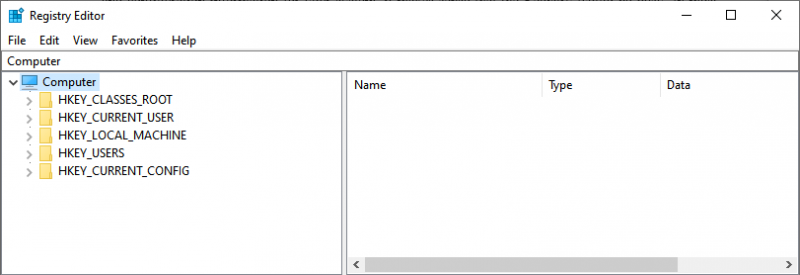
Figure 1. The Registry Editor
Understand that the Registry Editor is an extremely powerful tool—it allows you to make changes directly to the database that controls how Windows and the programs on your system function. Because of this, if you make a mistake in your editing, you can really mess things up. It is a good idea to make sure you know what you are changing before you make the changes.

 This tip (10954) applies to Windows 7 and 10.
The Registry is the central depository of configuration information used by Windows and by programs running on your ...
Discover MoreWindows wouldn't function if it weren't for the Registry, and many system tweaks involve editing it. If you've exported a ...
Discover MoreThe Registry is the central depository of configuration information used by Windows and by programs running on your ...
Discover More2020-12-28 08:14:42
Janice Clement
I have added Properties to a folder in Excel, is there a way to print the list of files in the folder having those Properties print?
Copyright © 2026 Sharon Parq Associates, Inc.

Comments